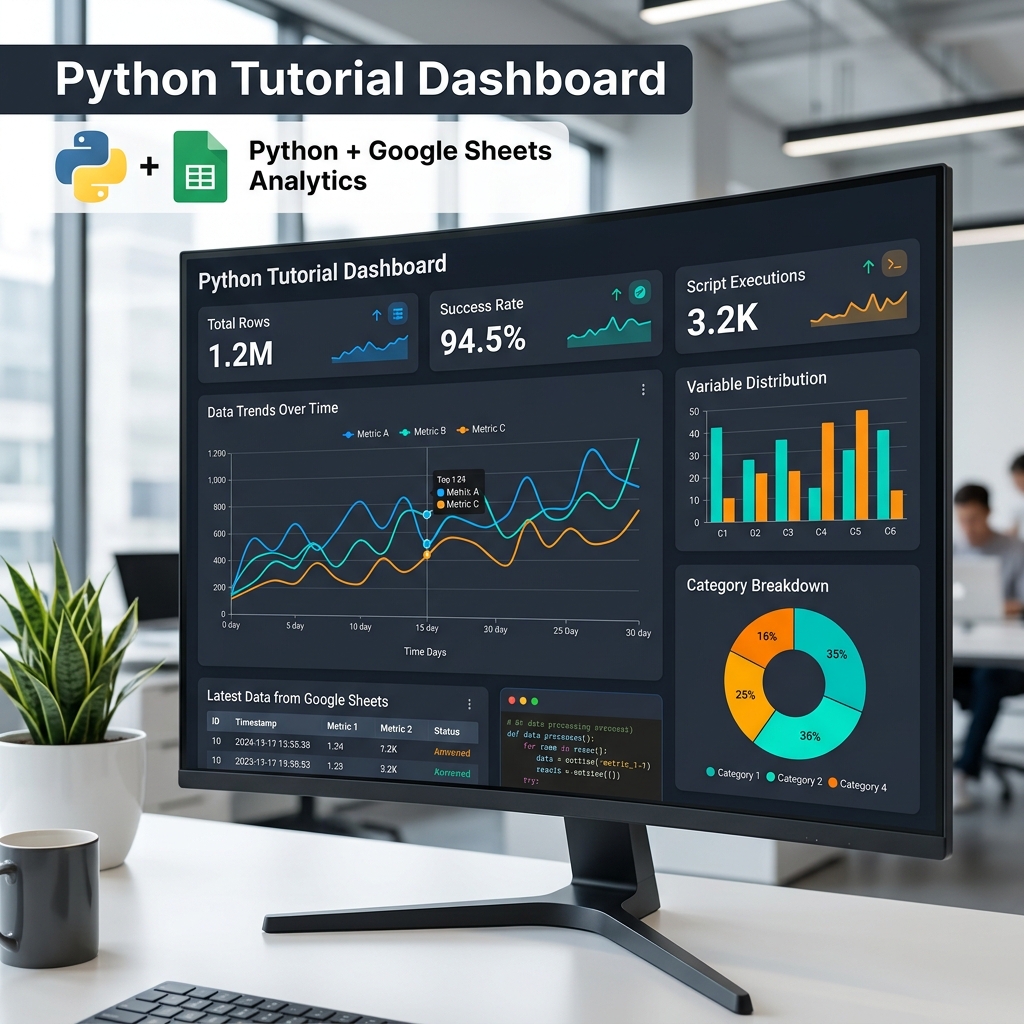
Project Overview
In this project, we will build a professional statistical dashboard. The core objective is to automate the process of fetching data from a Google Sheet and presenting it in an intuitive, visual format using Python.
This is a common real-world scenario for businesses that want to transform static spreadsheets into dynamic reporting tools.
Prerequisites
- Python 3.x installed on your machine.
- A Google Account to access Google Cloud Console.
- Basic knowledge of Python (variables, loops, functions).
Step 1
Setting Up Google Sheets API
First, we need to enable the Google Sheets and Google Drive APIs in the Google Cloud Console.
- Go to the Google Cloud Console.
- Create a new project.
- Enable the "Google Sheets API" and "Google Drive API".
- Create a Service Account and download the JSON key file. Rename it to
credentials.json. - Share your Google Sheet with the email address of the Service Account.
Step 2
Connecting Python to the Sheet
We will use the gspread and pandas libraries to handle the data.
import gspread
import pandas as pd
from oauth2client.service_account import ServiceAccountCredentials

# Define the scope
scope = ["https://spreadsheets.google.com/feeds", 'https://www.googleapis.com/auth/spreadsheets',
         "https://www.googleapis.com/auth/drive.file", "https://www.googleapis.com/auth/drive"]

# Add credentials to the account
creds = ServiceAccountCredentials.from_json_keyfile_name('credentials.json', scope)

# Authorize the clientsheet
client = gspread.authorize(creds)

# Get the instance of the Spreadsheet
sheet = client.open('Your Spreadsheet Name').get_worksheet(0)

# Get all the records of the data
data = sheet.get_all_records()

# Convert list of dicts to DataFrame
df = pd.DataFrame(data)
print(df.head())
Step 3
Visualizing the Data
Now we use matplotlib or seaborn to create charts.
import matplotlib.pyplot as plt
import seaborn as sns

# Basic Bar Chart
plt.figure(figsize=(10, 6))
sns.barplot(x='Category', y='Sales', data=df, palette='viridis')
plt.title('Sales by Category')
plt.xlabel('Category')
plt.ylabel('Sales')
plt.show()
Next Steps
Congratulations! You've built a basic data pipeline. You can expand this by:
- Adding more complex filters.
- Building a web interface using
StreamlitorDash. - Scheduling the script to run daily.